




















Profile
Profile settings and invitation
The diagram below shows the profile settings, invitation details, and controls for other profiles on this device.
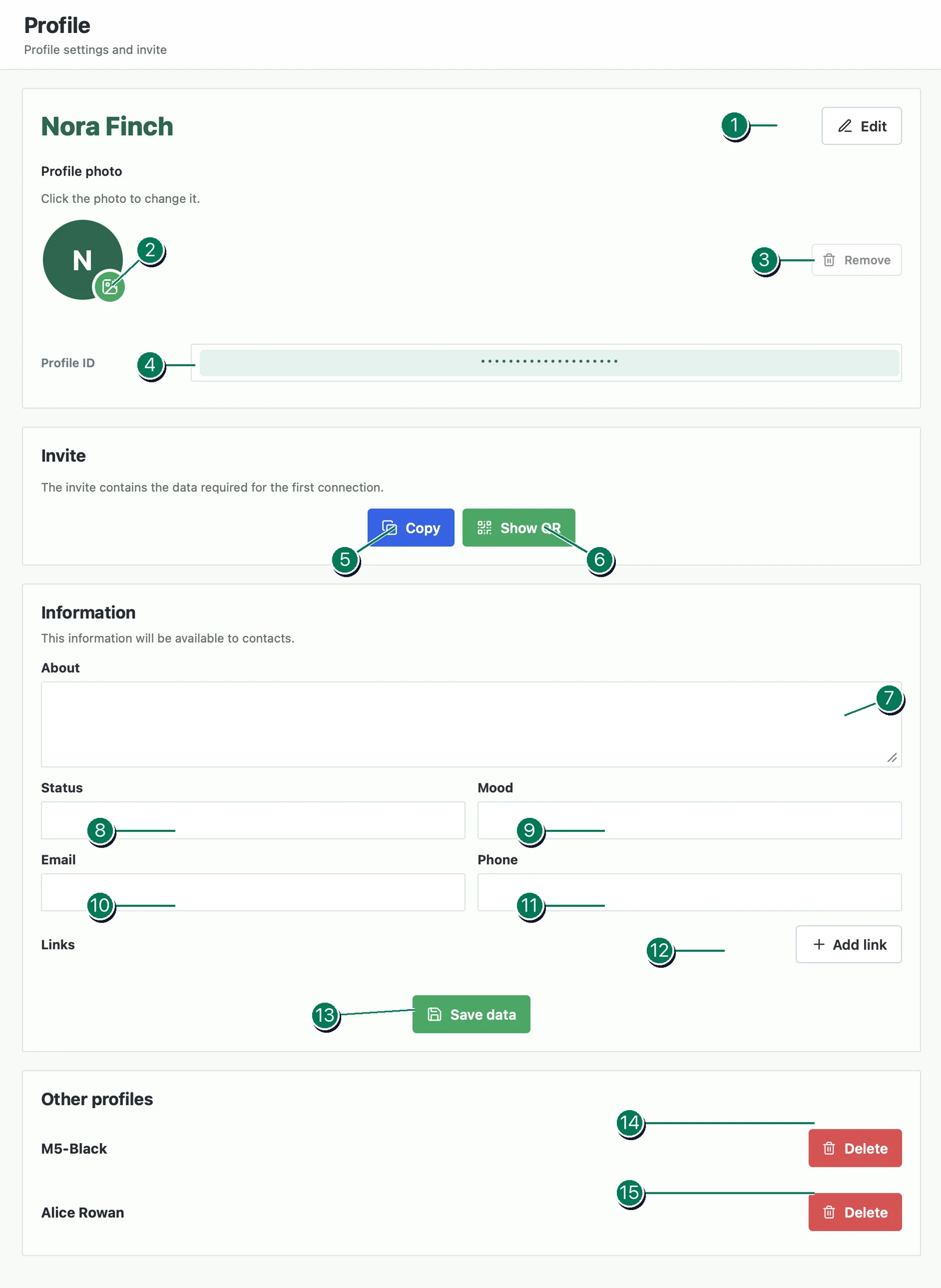
Basic profile settings
- Change profile name. Click the button to enter a new profile name.
- Upload an avatar. Click the icon next to the avatar to select and set a profile image.
- Remove the avatar. The button removes the previously selected profile image. It is unavailable if no avatar has been set.
Invitation
- Profile ID. This unique identifier is generated automatically when the profile is created and does not change afterward. Compare it with the other person when exchanging invitations and before adding a new contact.
- Copy the invitation. The button copies the invitation as text. You can send it to the other person by email or another trusted communication channel. If you add your own invitation to yourself, a Notes chat will appear in the chat list. You can use it as personal storage for notes, photos, files, and other materials.
- Invitation as a QR code. The button displays the invitation as a QR code. If both devices are nearby, scan the code on the second device to add the contact and create a new chat.
Public information
Important: these details are visible to your contacts. The fields are optional, so do not enter information that you do not want to share.
- About. A short description displayed in your profile.
- Status. A text field for your current status.
- Mood. A short note about your mood or current state.
- Email. An email address that your contacts will be able to see.
- Phone. A phone number that your contacts will be able to see.
- Add a link. You can add up to five links to websites, social media profiles, and other public resources.
- Save data. Click the button after editing the fields to save your changes.
Other profiles
This section lists the other profiles connected to the current client. Each delete button applies to the profile shown in the same row.
- Delete another profile. The button deletes the profile shown in the first row of the list.
- Delete another profile. The button performs the same action for the profile in the second row of the list.
Before deletion, Veyra will offer to save a backup if needed. To create it, enter the password of the profile being deleted; the same password will be required for recovery. Saving a backup is optional.
The local copy of the profile is deleted from the current device. If the profile is connected to other devices, the data on those devices is not changed or deleted.