




















Main window
Main interface overview
The diagram below identifies the main elements of the Veyra window.
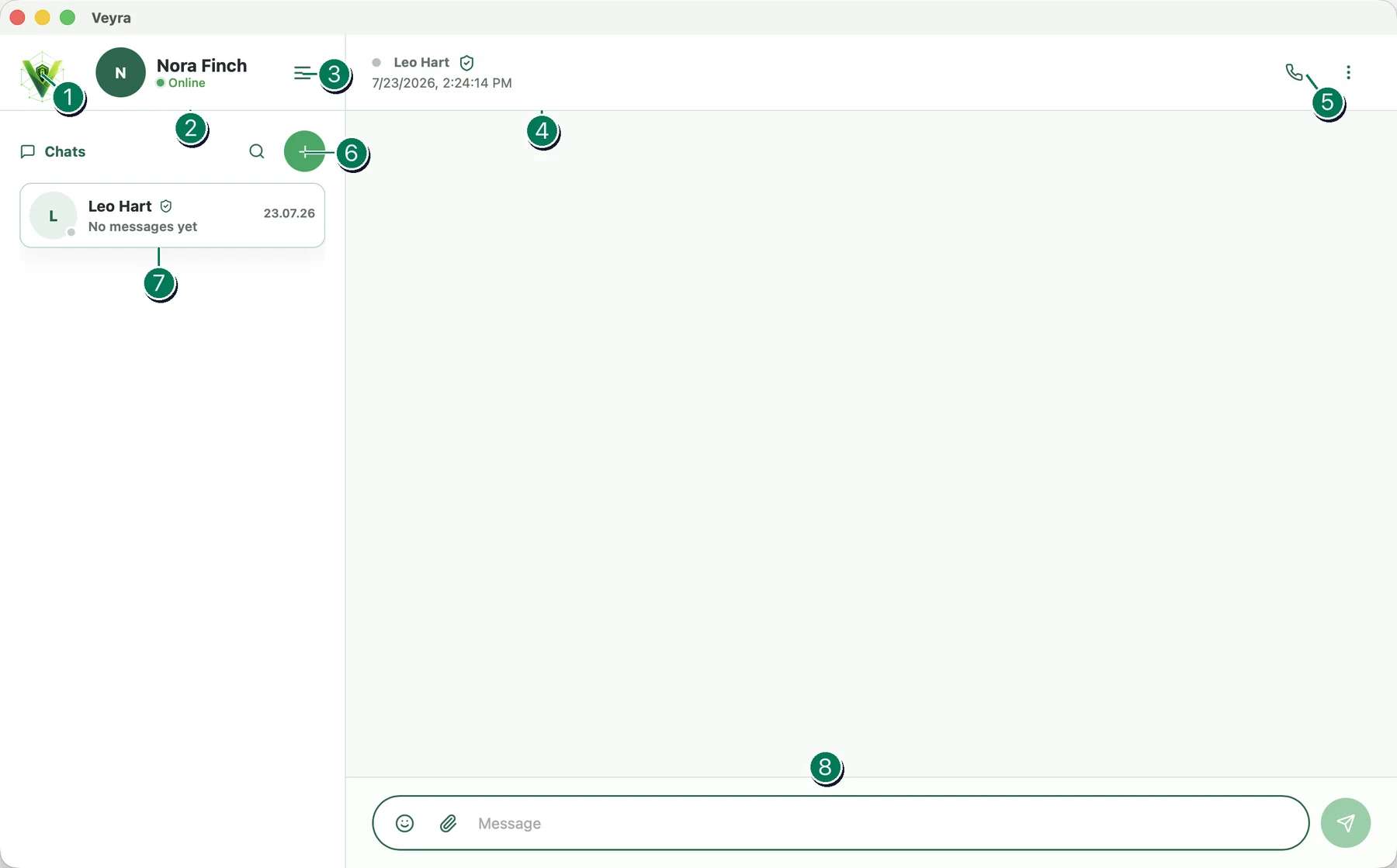
- Application logo. Click it to open a window with the Veyra version information and update settings.
- Active profile. This area shows the name, avatar, and connection state of the current profile. Click it to open profile settings and the invitation section used to add contacts.
- Main menu. This button opens the application menu with settings and operating options.
- Active chat. The header shows the contact name and the current connection state.
- Call and chat menu. The phone button starts an audio call when the current connection type supports calls. The chat settings menu lets you view the contact profile, clear or restore the history, and perform other actions.
- Search and add a contact. Search filters the chat list by contact name. The “+” button opens the window for adding a new contact.
- Chat list. This area shows contact names and avatars. Right-click a chat or press and hold it to open its menu. You can pin or rename the chat, block the contact, or delete the chat. After deletion, the history can only be restored from another of your devices or requested from the contact.
- Message field. Type text, add emoji, or attach a file here. To send the message, click the green arrow button on the right.