




















Security
Password management and profile protection
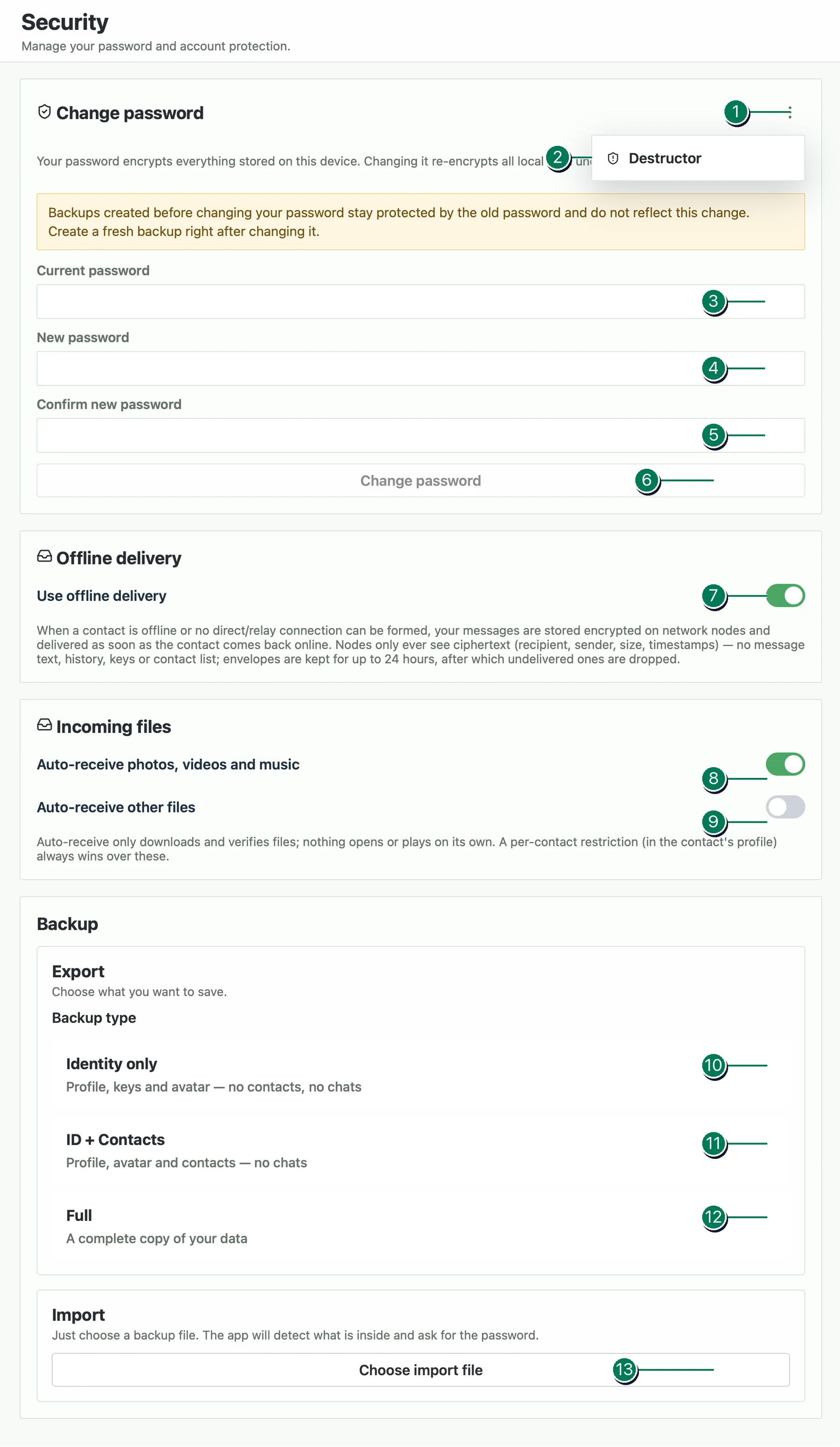
Destructor
1. Emergency password setup menu. Here you can set a special password for emergency situations—a duress password.
2. Destructor. After setting a self-destruct password through this option, you can enter it on the authorization screen. When such a destructor password is entered, the application automatically, completely, and physically destroys the profile along with all contacts, chats, and other local data. A new empty profile with the same name then opens, and the destructor password becomes its primary password. Destroyed data can be restored only from a backup created beforehand. If no backup exists, the data will be lost forever and cannot be recovered, even with specialized tools.
Changing the password
3–5. Password change fields. Enter the current password in field 3, the new password in field 4, and the new password again in field 5.
6. Change password. After filling in the fields, click this button. The password will be changed and the database will be re-encrypted with the new password. This may take some time, especially if the profile contains many chats and attached files.
7. Offline delivery. Enabled by default, this feature allows other users to send you messages while you are offline. Deferred messages will arrive after you return to the network. They are encrypted using four keys and stored on other nodes only in encrypted form, so they cannot be decrypted without your keys. This feature is safe to use, but you may disable it if you wish.
Backup
8–9. Automatically accepting incoming files. These switches allow incoming files to be accepted without additional confirmation: item 8 applies to photos, videos, and music, while item 9 applies to all other files. If a switch is disabled, every corresponding incoming file must be confirmed separately.
10. ID only. Clicking this row creates a profile backup without contacts or chats. To save it, you must set a separate backup password—not the profile password.
11. ID + Contacts. Clicking this row creates a profile backup containing all contacts but no chats. To save it, you must set a separate backup password—not the profile password.
12. Full. Clicking this row creates a full profile backup containing all contacts, chats, and attached files. The operation may take a long time. Proxy settings are not included in the backup. To save it, you must set a separate backup password—not the profile password.
13. Restoring a backup. Select a previously saved file, choose whether to restore it as an additional device or as the primary device, and enter the backup password. After the profile is restored, you will be redirected to the authorization screen.